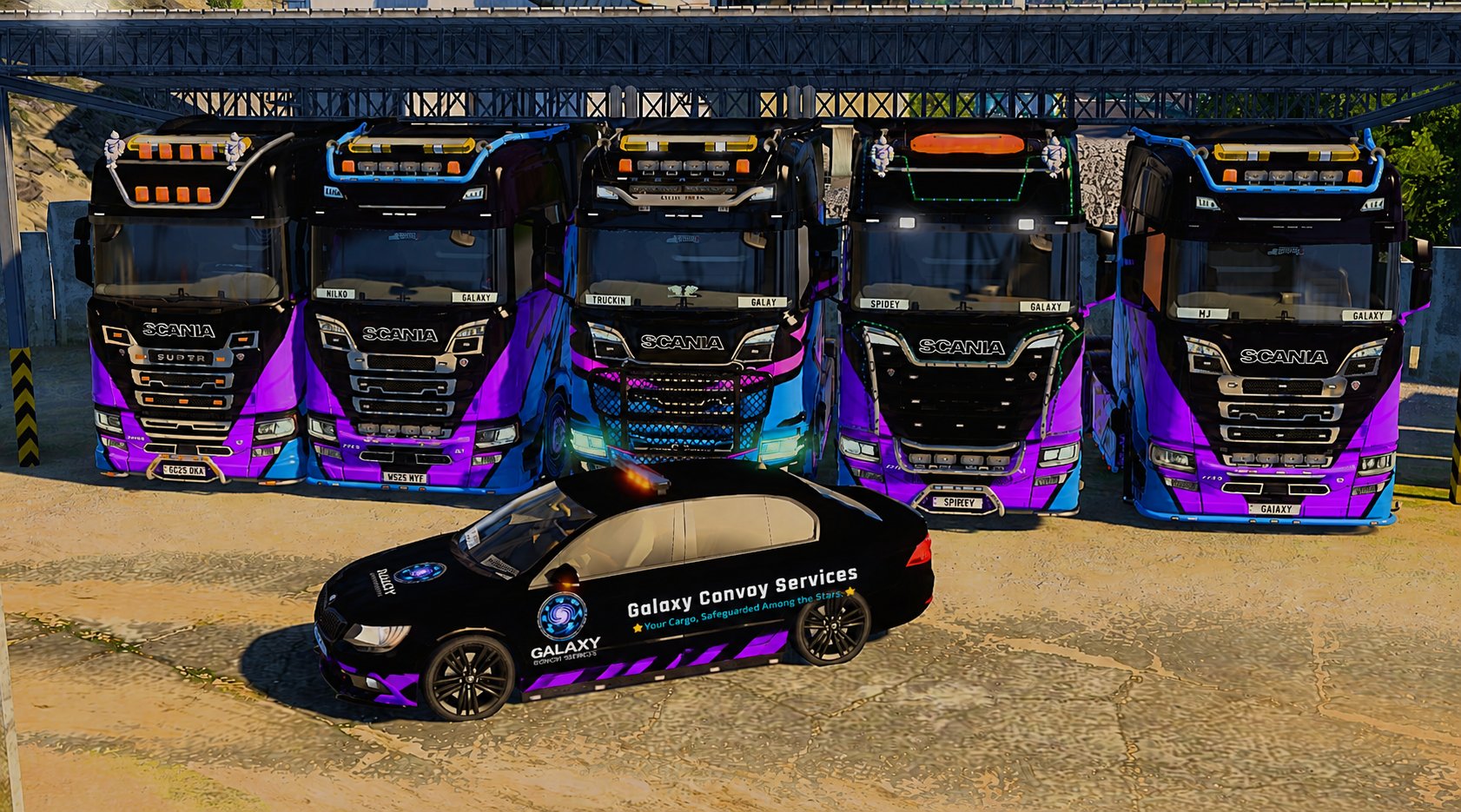
Welcome to Galaxy Convoy Services. We hope you enjoy being part of our company! This is a complete custom staff hub and we hope you find it useful. Should you want anything added or modified, please do not hesitate to pass on your ideas in a Discord ticket.
Tip — separate sections with --- and start lines with • for bullet points. Emoji-prefixed phrases like 📅 Custom Event System become section headings.
No image
Upload a JPG / PNG / WebP — it'll be stored in Strapi's media library and linked to this article automatically. Max ~10 MB. Transparent PNGs look best on the dark theme.
▶ Advanced options
Recent articles
Loading…
Announcement → navbar ticker
The announcement shows in the ticker between Starts and Ends. Leave Ends blank for an open-ended announcement.
▶ Advanced options
Recent announcements
Loading…
Media system
How the Galaxy Convoy Services media library works — uploading, managing, and publishing event photos.
📸 Uploading photos
Go to Media library in the sidebar, pick an event from the dropdown, and click Choose image.
Add an optional caption (e.g. "Approach to Lille at sunset") and hit Upload.
Images are automatically compressed and converted to WebP for fast loading.
You can upload multiple photos — just repeat the process for each one.
🌐 Public gallery
Photos appear on the public Gallery page automatically — but only after the event date has passed.
Upcoming events won't show on the public page even if photos have been uploaded.
This means you can upload during or immediately after a convoy, and the gallery updates itself the next day.
🗑️ Deleting photos
In the Media library, select an event to see its photos. Click 🗑 Delete under any photo to remove it permanently.
This also deletes the underlying file from the server — it can't be recovered.
Only do this for duplicates, mistakes, or inappropriate content.
👥 Who can manage media?
Media Team and above can upload, caption, and delete photos. This includes:
Media Team, Media Assistant, Media Manager, Social Media Manager,
Event Coordinator, Event Manager, Event Supervisor, Community Manager,
and all executive roles.
📩 Community submissions
Past events without photos show a "Submit photos" button on the public gallery
that links to the Discord photos channel.
Drivers can drop their screenshots there, and the media team can then upload the best ones here.
💡 Tips
Captions matter — they appear when users hover over photos and in the lightbox. Keep them short and descriptive. Quality over quantity — pick the best 10–20 shots rather than uploading everything. Landscape orientation works best in the grid layout.
Quick start: Sidebar → Media library → pick event → choose image → upload. That's it — the public gallery handles the rest.
🎬 Gallery Banner — Truckin Media
Update the Truckin Media banner image and link shown at the top of the public Gallery page.
Paste a direct image URL and an optional link URL. Leave blank to use the default banner.
Preview:
Media library
Upload photos from convoy events. Photos appear on the public Gallery page
once the event date has passed. Media Team and above can upload, edit captions,
or delete photos here.
Upload a photo
No file chosen
Partner page
Edits the public Partners page via Strapi single type
GET/PUT/POST /api/partner-page (copy strapi-import/api/partner-page into Strapi src/api, rebuild, then Public → find for the public site; Hub load uses that same public GET. Saves need Staff-Exec (or your staff role) → update on Partner page). See
scripts/staff-tools-partners-api.contract.txt.
Partner cards
Add rows for each partner. Use Delete on a row, then Save to server to remove it from the live page. You can save with no rows to clear the grid (the public site may still show its built-in default list when Strapi has no partners). Logo: URL or path (e.g. /assets/partners/logos/…). Sort: lower numbers first.
Welcome to Galaxy Convoy Services. We hope you enjoy being part of our company! This is a complete custom staff hub and we hope you find it useful. Should you want anything added or modified, please do not hesitate to pass on your ideas in a Discord ticket.
📋Role Assignment Guide— what to assign in Users & Roles
When someone joins or changes role, go to Users & Roles in the left menu, find their account, and tick the boxes below. Every member needs a JWT tier and at least one site tick.
💡 VTC side vs Event company:If someone is purely a VTC member (driver, not involved in event operations), they only need VTC Driver ticked — nothing else. Event company roles (CC Team, Event Staff, Event Supervisor etc.) are separate and get their own ticks on top.
⚠️ Do not tick VTC Driver for everyone.Only tick VTC Driver if the person is actually a driver in the VTC. Event company staff (CC Team, Event Staff, supervisors etc.) do not need it unless they also personally drive in convoys.
🚛 New VTC Driver / Member
JWT: Staff
What to set
Value
JWT Role
Staff
Site Tick
✔ VTC Driver
Access
Staff Hub, event planning view, downloads, LOA form. No applications, emails, or management.
🎪 Event Staff
JWT: Staff
What to set
Value
JWT Role
Staff
Site Ticks
✔ Event Staff
Access
Convoy control area and event sheets (view). Hub access. Not shown on public staff page. Add VTC Driver tick separately if they also drive.
🚦 CC Team
JWT: Staff
What to set
Value
JWT Role
Staff
Site Ticks
✔ Convoy Control Team
Access
Full convoy control area, event sheets (view + edit). No applications, emails, or management area. Add VTC Driver tick separately if they also drive.
📸 Media Team / Assistant / Manager
JWT: Staff
What to set
Value
JWT Role
Staff
Site Ticks
✔ Media Team (or Media Assistant / Media Manager)
Access
Media library (upload/manage event images), convoy/sheets read-only. No applications or management area.